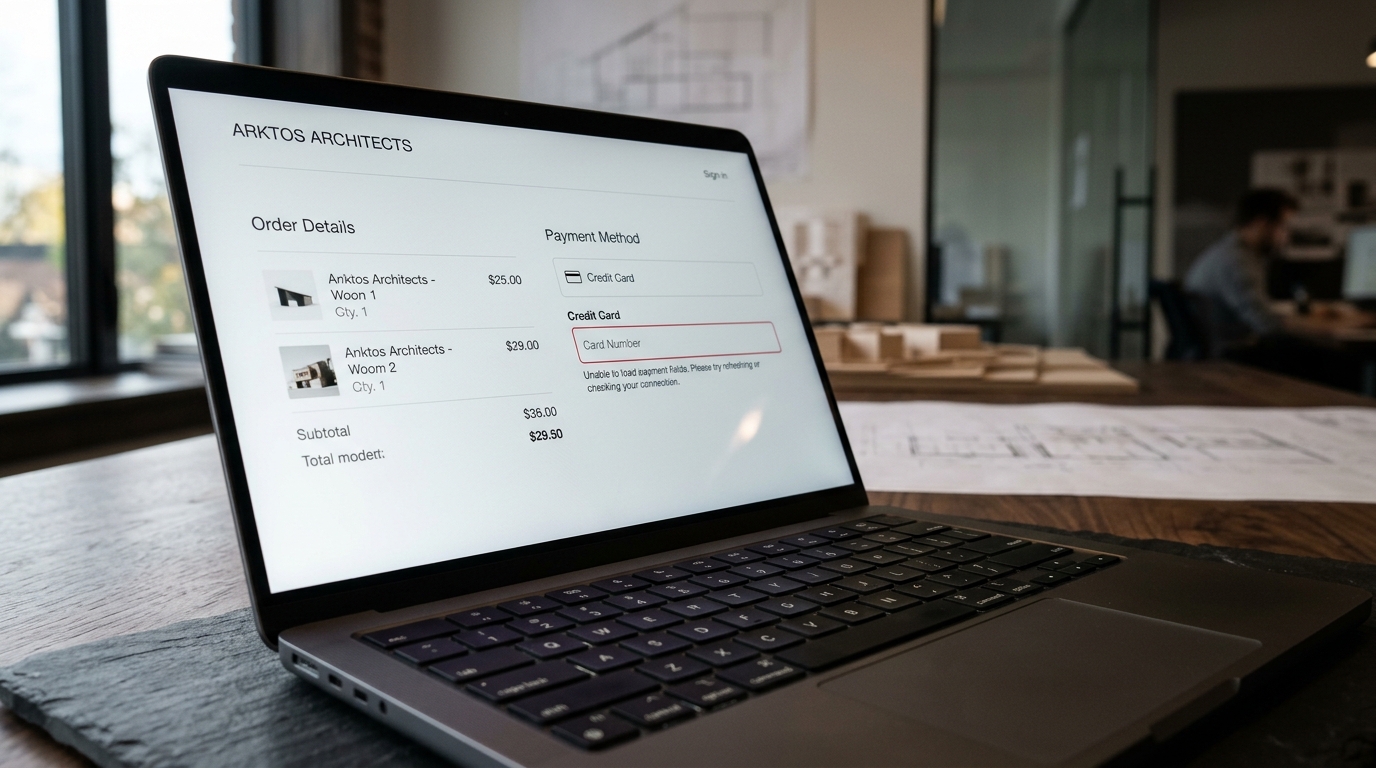
Stripe Elements Not Loading at Checkout? 5 Causes & Instant Fix

UptimeClick Infrastructure Team
7 min read
The Ghost Payment Form
A customer arrives at your checkout page, types in their shipping address, chooses priority delivery, and clicks “Credit / Debit Card” to complete their purchase.
They look down at the screen, credit card in hand, ready to enter their 16-digit card number, expiration date, and CVC security code. But the input field is completely blank. In its place sits an empty grey rectangle, a frozen loading placeholder, or a glaring console warning: “Failed to mount Stripe Element.”
Confused and unable to submit the form, the shopper clicks the “Pay Now” button. Nothing happens. The button remains disabled because the underlying Stripe payment token was never generated. Frustrated, the customer closes the browser and buys from your competitor.
To your server monitoring logs, nothing broke. The checkout page loaded with status 200 OK, the database was healthy, and your uptime dashboard showed 100% green availability. Yet your store suffered a 100% conversion wipeout for all credit card transactions.
Want to ensure your Stripe card fields and checkout buttons never silently fail?
Standard HTTP ping monitors only check server status codes and miss broken JavaScript hydration, invisible overlays, and disabled checkout buttons. UptimeClick runs real headless Chromium every 2 hours to verify that buttons like Pay Now are physically actionable—alerting you immediately with error screenshots if a click fails.
How Stripe Elements Mounts Into Your Storefront
To satisfy stringent PCI-DSS Level 1 compliance requirements, online merchants cannot host raw credit card input fields in plain HTML. If your server directly touched card numbers, a single compromised script could harvest customer financial data.
Instead, Stripe invented Stripe Elements (and the modern PaymentElement). Rather than standard input tags, Stripe injects a secure, isolated <iframe> hosted directly on Stripe’s domain (https://js.stripe.com):
Because this architecture relies on a multi-stage handshake between your local frontend code and external Stripe iframe servers, an unhandled error at any single phase leaves the card container completely empty.
The 5 Critical Causes Behind Blank Stripe Elements
1. Content Security Policy (CSP) Blocking `frame-src`
This is the number one cause of blank Stripe fields on security-conscious stores. Modern web hosting environments configure HTTP Content Security Policy (CSP) headers to guard against Cross-Site Scripting (XSS).
When Stripe mounts, it injects remote iframes from https://js.stripe.com and initiates telemetry calls to https://api.stripe.com and https://m.stripe.network (for advanced fraud detection). If your server sends a CSP header like this:
// DANGEROUS: Blocks Stripe iframes from rendering
Content-Security-Policy: default-src 'self'; frame-src 'self'; script-src 'self';
The customer’s browser immediately terminates the card iframe. In Chrome DevTools Console, you will see a red security violation:
Refused to frame 'https://js.stripe.com/' because it violates
the following Content Security Policy directive: "frame-src 'self'".
The Fix: Update your CSP headers to explicitly allow Stripe endpoints across frame, script, and connect directives:
Content-Security-Policy:
  script-src 'self' https://js.stripe.com;
  frame-src 'self' https://js.stripe.com https://hooks.stripe.com;
  connect-src 'self' https://api.stripe.com https://m.stripe.network;
2. Single Page App Hydration Race Conditions (`Target DOM Element Missing`)
On headless storefronts built with React, Next.js, Vue, or Nuxt, developers frequently call elements.create('payment') inside an effect hook before the DOM container (e.g. <div id="payment-element" />) has physically mounted into the browser Document Object Model.
If your checkout page conditionally renders payment steps (e.g., hiding payment fields until shipping address validation passes), element.mount('#payment-element') searches the DOM, finds null, and throws a fatal error:
IntegrationError: The selector you provided (#payment-element) did not match any element on the page.Even worse, if the user toggles between shipping and billing tabs, re-running mount() on an already mounted element crashes with IntegrationError: An element may only be mounted once.
The Fix: Always use the official @stripe/react-stripe-js wrapper components (<Elements stripe={stripePromise}> and <PaymentElement />) which manage the lifecycle, cleanup, and DOM readiness automatically.
3. CSS Display, Opacity, and Zero-Height Collisions
Unlike raw HTML inputs, Stripe iframes compute their internal styling and typography based on the computed width and height of the parent container element at the exact moment of mounting.
If your checkout theme places the payment container inside an accordion tab or modal with display: none, visibility: hidden, or height: 0px during initialization:
- The Stripe iframe initializes with a height of
0px. - When the customer expands the payment accordion, the container opens, but the internal iframe remains flattened to 0 pixels.
- To the shopper, the card form is completely invisible.
The Fix: Never initialize or mount Stripe Elements inside a hidden container with display: none. If you must pre-render tabs, use position: absolute; left: -9999px; so the element retains real layout dimensions, or defer mounting until the tab is visibly toggled.
4. Client-Side Adblockers Blocking `m.stripe.network` Fraud Signals
Stripe utilizes an internal fraud detection network (Radar) that collects passive telemetry signals (browser canvas fingerprinting, timing metrics) via https://m.stripe.network.
Aggressive browser adblockers (such as uBlock Origin or Brave Shields) occasionally miscategorize m.stripe.network or tracking scripts as third-party analytics trackers and block them.
While Stripe is engineered to degrade gracefully when fraud scripts are blocked, poorly written custom checkout integrations that attach strict await stripe.confirmPayment() listeners without error handling will hang indefinitely, waiting for a blocked telemetry promise that never resolves.
The Fix: Wrap all Stripe confirmation calls in defensive error boundaries. If network requests to Stripe telemetry fail, allow the user to complete checkout and let Stripe Radar score the transaction server-side.
5. Publishable Key Mismatches & Currency Incompatibilities
During migrations between staging and production environments, developers frequently deploy backend code using a Live Secret Key (sk_live_...) while the frontend continues requesting the Stripe SDK using a Test Publishable Key (pk_test_...).
When the frontend attempts to mount a PaymentIntentcreated with live keys using a test publishable key, Stripe’s servers reject the clientSecret with an HTTP 401 Unauthorized status:
IntegrationError: No such payment_intent: 'pi_3L...';
a similar object exists in live mode, but a test mode key was used to make this request.
The card container immediately disappears, leaving the customer stranded.
The Fix: Ensure both backend and frontend environment variables strictly mirror each other (NEXT_PUBLIC_STRIPE_PUBLISHABLE_KEY matches STRIPE_SECRET_KEY mode).
Diagnostic Comparison: Stripe Elements Failures
| Symptom | Root Cause | Affected Platforms | Recommended Resolution |
|---|---|---|---|
| Card input box is completely blank | CSP frame-src header blocking https://js.stripe.com | Custom React/Next.js, Shopify Plus | Add js.stripe.com to CSP frame-src and script-src |
| Iframe collapsed with 0px height | Mounted inside accordion/modal with display: none | WooCommerce, Magento, BigCommerce | Defer element.mount() until payment accordion is visible |
| “No such payment_intent” error | Frontend pk_test key used with backend sk_live clientSecret | All platforms | Sync Live/Test publishable and secret keys across .env files |
| “Can only create one Element” crash | SPA re-render creating duplicate Element without unmounting | React, Next.js, Vue Single Page Apps | Use official @stripe/react-stripe-js lifecycle hooks |
Why Server Ping Monitors Cannot Detect Blank Card Fields
Standard server ping tools (like UptimeRobot, Pingdom, or basic status pages) only check whether your web server responds with an HTTP status code 200 OK.
When Stripe Elements fails:
- The HTML page loaded in 200 milliseconds.
- Your Nginx/Node.js server reports zero crashes.
- Your database connection is 100% active.
Yet to every customer visiting your store, the checkout form is completely inoperable. Standard monitors declare your website 100% healthy while every card sale evaporates before your eyes.
The only reliable defense is automated synthetic browser monitoring. A headless Chromium engine navigates to your live checkout page, waits for DOM hydration, inspects the Stripe iframe dimensions to verify that card input fields are visibly mounted, and alerts your team the moment a payment form freezes.
Frequently Asked Questions
Why are my Stripe card input fields invisible on mobile devices?
On mobile devices, responsive checkout themes frequently position sticky cart bars or consent banners with high CSS z-index rules over the payment form. Furthermore, mobile browsers aggressively throttle background script execution, causing race conditions where Stripe tries to mount before mobile DOM styles finish calculating.
Can caching plugins break Stripe Elements?
Yes. Optimization plugins in WordPress (such as WP Rocket or LiteSpeed) that delay or defer JavaScript execution can delay the Stripe SDK (js.stripe.com/v3/). If the user interacts before the script finishes hydrating, the container div remains empty.
How do I test if Stripe Elements is working for real buyers?
Open an incognito browser window, proceed to checkout, open Chrome Developer Tools (F12) to the Console and Network tabs, and verify that the iframe renders with non-zero dimensions without red CSP or 401 errors. For round-the-clock peace of mind, automate this with UptimeClick.
Related Payment & Checkout Guides
- PayPal Checkout Button Not Working? 5 Common Causes & Instant Fix →
- Why Your Checkout Fails 3D Secure (3DS) & OTP Verification →
- Why Apple Pay & Express Checkout Buttons Are Missing or Not Working →
- Checkout Button Greyed Out or Disabled? 5 Causes & Instant Fix →
- Why Your WooCommerce Checkout Button Is Not Working →
Protect Your Stripe Checkout From Silent Failures
UptimeClick deploys real headless Chromium browsers to test your checkout fields and payment buttons every 2 hours. Receive instant screenshot alerts the moment your Stripe card forms break.