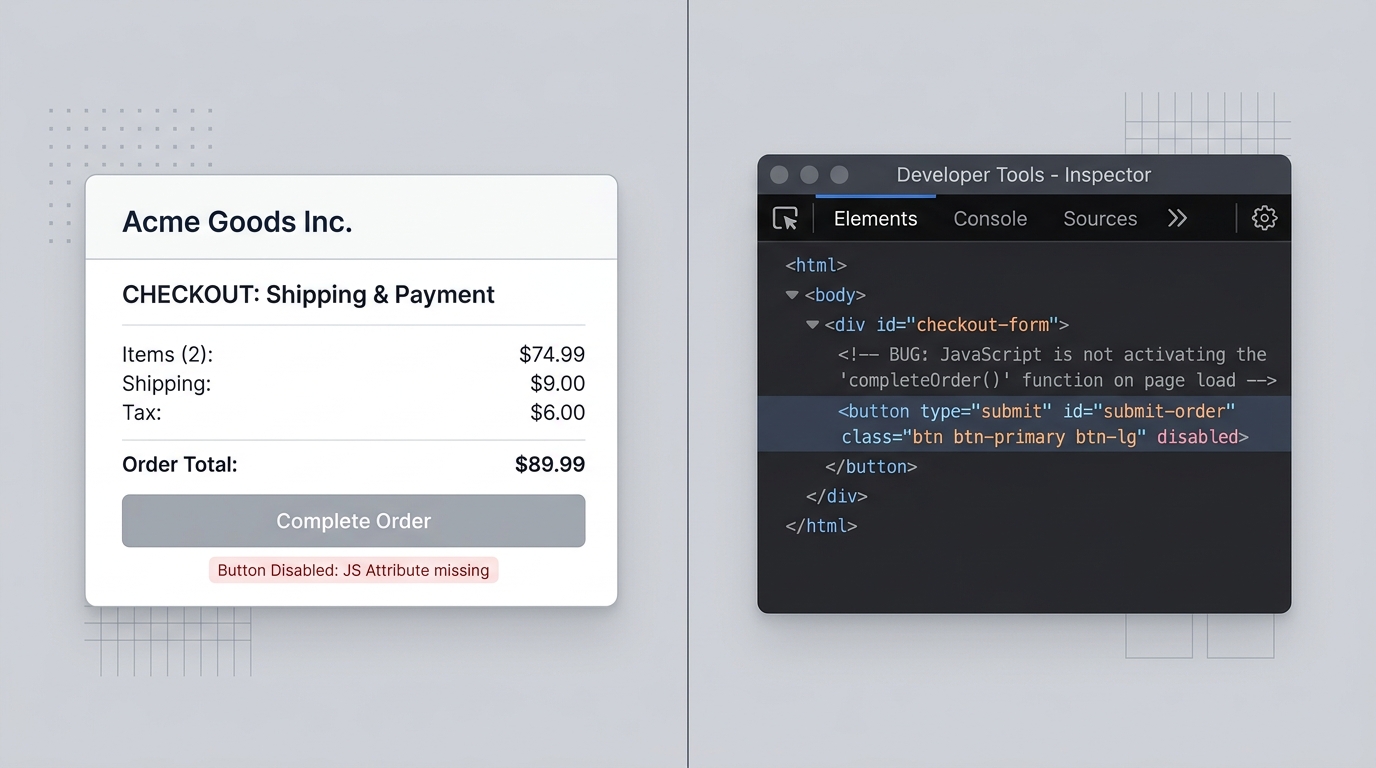
Why Is Your Checkout Button Greyed Out or Disabled? (And How to Fix It)

UptimeClick Operations
6 min read
The Frozen Gateway: When Shoppers Want to Pay but Cannot
Few technical issues destroy high-intent conversions faster than a disabled purchase button. A customer navigates to your store, configures their product options, opens their cart drawer, and finds that the “Proceed to Checkout” or “Complete Order” button is a muted grey rectangle that refuses to accept clicks.
Because the page loads cleanly without returning a 500 server crash, traditional uptime monitors continue reporting 99.9% availability. In reality, your store has suffered a complete operational freeze: zero customers can complete transactions.
The Anatomy of a Disabled State
Modern e-commerce themes initialize purchase buttons in a protected state. By default, button elements frequently carry HTML attributes like disabled="disabled" or aria-disabled="true" until client-side JavaScript finishes validating required form conditions:
- Confirming that a valid product size, color, or variant has been selected.
- Verifying that real-time inventory exists for the chosen location.
- Validating required fields such as terms-and-conditions agreements or custom engraving text.
- Registering active payment gateway tokens (Stripe Elements, Shop Pay, PayPal).
If a single client-side script crashes before completing this checklist, the button never receives the instruction to unlock.
The 4 Most Common Causes and Quick Diagnostic Fixes
1. Variant Inventory Misconfiguration
On platforms like Shopify, if a customer selects a specific variant (e.g., Size Large in Navy) whose inventory count is 0 and “Continue selling when out of stock” is unchecked, the theme automatically updates the button text to “Sold Out” and sets the button to disabled.
However, if multi-location inventory is configured and stock is assigned to a physical warehouse that is not linked to your online sales channel, the frontend code treats the item as unavailable even when your admin displays positive global stock.
The Fix:In your store admin, review the specific product’s variant matrix. Verify that inventory quantities are explicitly assigned to active online store locations.
2. Missing Terms and Conditions or Pre-Checkout Apps
Many European and international stores use third-party apps to enforce legal requirements, such as an “I agree to the Terms of Service” checkbox or an age-verification modal.
These apps hook into the cart DOM and apply a disabled attribute or CSS pointer-events: none class to the checkout button until the checkbox changes state. If a theme update or CSS conflict hides the checkbox container, shoppers can never check the box, leaving the checkout button permanently greyed out.
The Fix: Right-click the greyed-out button and select “Inspect”. Search the surrounding DOM for hidden input tags with names containing terms, agreement, or compliance.
3. Delayed or Blocked WooCommerce Variation Scripts
On WooCommerce stores with variable products, the Add to Cart button relies on the core script add-to-cart-variation.min.js to compute price and stock upon user selection.
If optimization plugins (such as WP Rocket, LiteSpeed, or Autoptimize) are set to “Delay JavaScript Execution” or combine scripts aggressively, this variation script often fails to execute on initial user tap. As a result, the button remains greyed out indefinitely.
The Fix: Add add-to-cart-variation.min.js and woocommerce.min.jsto your caching plugin’s JavaScript execution exclusion list.
4. Client-Side JavaScript Exceptions During Hydration
If a newly added marketing pixel, customer review badge, or currency converter throws an uncaught JavaScript error during page load, the browser halts script execution before reaching the button listener logic.
The Fix: Press F12 to open DevTools, select the Consoletab, and reload the product page. Filter by “Errors” to locate red exception traces originating from custom theme code or third-party tags.
Why Traditional Uptime Tools Cannot Protect You
A standard server ping simply asks your web host: “Did you return HTTP 200 OK?” When a checkout button is disabled:
- The HTML document loaded in 250 milliseconds.
- The web server responded with perfect health.
- The SSL certificate is 100% valid.
Yet to every customer visiting your store, the website is functionally broken. Basic uptime monitors give store owners a false sense of security while revenue evaporates.
Modern synthetic monitoring takes a completely different approach: it opens a real headless Chromium browser, navigates to your live product and cart pages, and evaluates whether the checkout selector is visibly enabled, clickable, and capable of executing order handoffs.