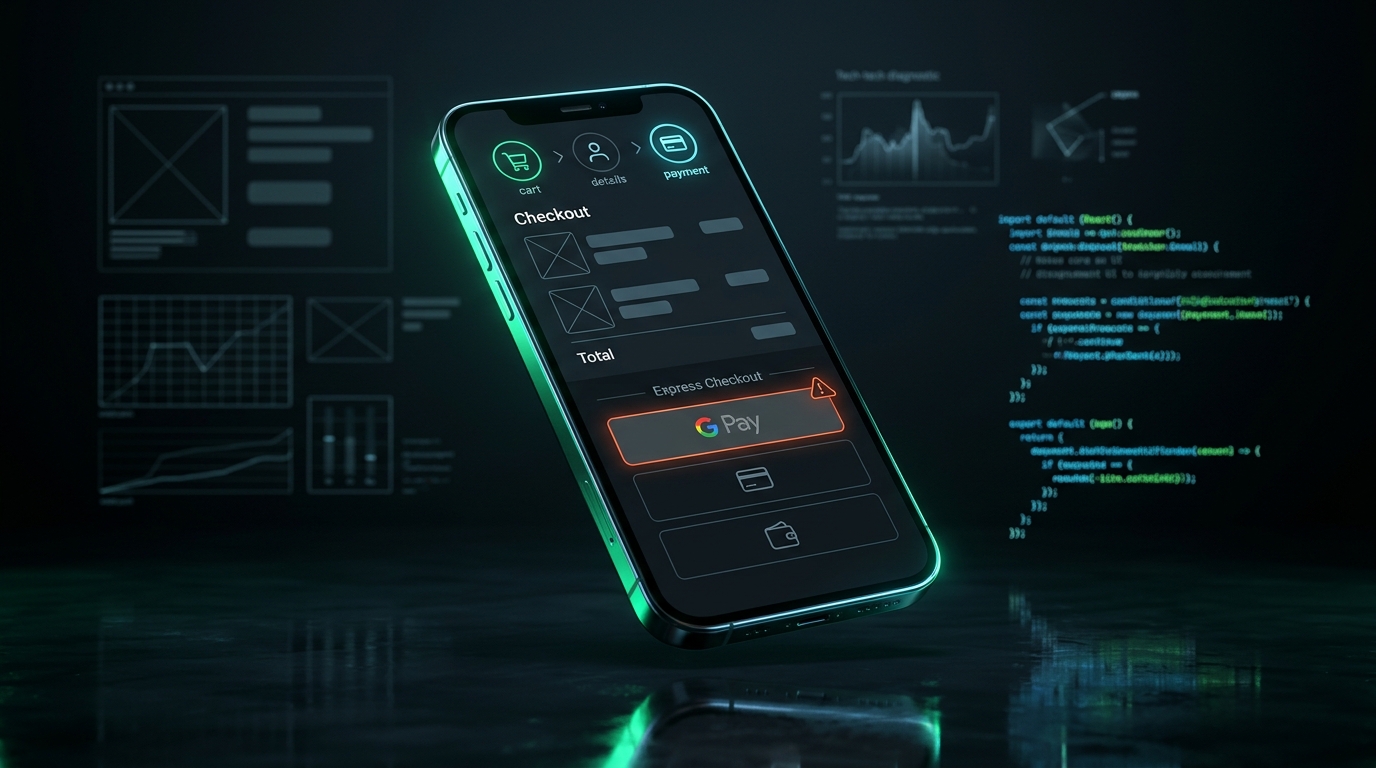
Google Pay Button Missing or Failing at Checkout? 6 Root Causes & Fix
Google Pay powers frictionless, 1-tap mobile purchases for hundreds of millions of Android and Chrome shoppers. When the button silently vanishes or throws cryptic modal errors, conversions drop precipitously. Here is the engineering diagnosis manual to restore reliable 1-tap checkout.
For high-volume e-commerce storefronts, express checkout buttons—specifically Google Pay and Apple Pay—drive up to 40% of mobile transactions. When a shopper taps “Google Pay”, they expect instant biometric authentication without re-typing their credit card number or billing address.
Yet, engineering teams routinely discover that the Google Pay button is completely absent from product and checkout pages, or fails upon click with ambiguous errors like [OR-PCVH-01], PaymentRequest API disabled, or an unhandled promise rejection. Worse, standard HTTP monitoring pings report HTTP 200 OK because the page itself loaded fine—only the client-side Google Pay SDK failed to initialize.
Below is the comprehensive technical breakdown of the six underlying causes behind Google Pay failures across Shopify, WooCommerce, Stripe, and headless React/Next.js architectures—and how to permanently safeguard your checkout pipeline.
Want automated alerts when your Google Pay or Apple Pay buttons fail?
Standard HTTP ping monitors only check server status codes and miss broken JavaScript hydration, invisible overlays, and disabled checkout buttons. UptimeClick runs real headless Chromium every 2 hours to verify that buttons like Google Pay or 1-Tap Checkout are physically actionable—alerting you immediately with error screenshots if a click fails.
The 60-Second Chrome DevTools Triage
Before modifying theme templates, disabling payment gateways, or redeploying your frontend, inspect the checkout DOM in an incognito window with Chrome DevTools open (F12 or Cmd + Option + I).
- Check
window.PaymentRequest: TypeBoolean(window.PaymentRequest)into the DevTools Console. If it returnsfalse, your current browser context or iframe permissions policy is explicitly blocking modern web payments. - Inspect the Console for CSP Violations: Look for red errors containing
Refused to load the script 'https://pay.google.com/gp/p/js/pay.js'orRefused to frame 'https://pay.google.com'. If present, your server Content-Security-Policy headers are actively preventing Google Pay from rendering. - Examine the
isReadyToPay()Promise: If your store uses the Google Pay JavaScript API directly (viagoogle.payments.api.PaymentsClient), log the response ofpaymentsClient.isReadyToPay(isReadyToPayRequest). Ifresult.resultisfalse, Google Pay has determined the user or merchant setup does not qualify to display the button.
Cause 1: isReadyToPay() Prerequisite & Environment Mismatches
The most frequent reason the Google Pay button silently vanishes is that the Google Pay client SDK deliberately hides itself when its eligibility criteria are not met. The SDK calls isReadyToPay() before appending the button DOM element:
// Typical Google Pay Initialization Request
const isReadyToPayRequest = {
  apiVersion: 2,
  apiVersionMinor: 0,
  allowedPaymentMethods: [
    {
      type: 'CARD',
      parameters: {
        allowedAuthMethods: ['PAN_ONLY', 'CRYPTOGRAM_3DS'],
        allowedCardNetworks: ['MASTERCARD', 'VISA', 'AMEX']
      }
    }
  ],
  // WARNING: If existingPaymentMethodRequired is true,
  // the button will NOT render unless the user has an active card in Google Wallet!
  existingPaymentMethodRequired: true
};
Notice the existingPaymentMethodRequired property:
- If set to
true: Google Pay will only render if the customer is actively signed into a Google Account that already has a verified credit/debit card saved in Google Wallet. If a guest shopper or desktop user without a synced card visits your site, the button disappears without throwing an error. - Environment Parameter Mismatch: In staging environments, setting
environment: 'PRODUCTION'without an approved Merchant ID will cause the API to reject initialization. Conversely, leavingenvironment: 'TEST'in production displays a watermark that confuses shoppers.
Cause 2: Content Security Policy (CSP) & Permissions-Policy Blocks
To protect customers against clickjacking and cross-site scripting (XSS), modern web applications deploy strict HTTP response headers. However, overly restrictive Content Security Policies frequently break third-party payment widgets like Google Pay, Stripe Elements, and PayPal.
Google Pay requires loading external scripts and embedding secure iframes hosted on Google's infrastructure. If your server headers omit these origins, the browser blocks execution:
# Required CSP Directives for Google Pay
Content-Security-Policy:
  script-src 'self' https://pay.google.com https://www.gstatic.com;
  frame-src 'self' https://pay.google.com;
  connect-src 'self' https://pay.google.com https://google.com;

# Required Permissions-Policy to allow Payment Request API inside iframes
Permissions-Policy: payment=(self "https://pay.google.com")
Furthermore, if your e-commerce checkout embeds payment components inside nested iframes (common in headless architectures or Shopify checkout apps), the enclosing <iframe> element must declare the allow="payment" attribute. Without it, Chrome revokes the PaymentRequest capability immediately.
Cause 3: Insecure Contexts & Mixed Content Warnings
Chrome enforces rigorous security guarantees around biometric authentication and credit card tokenization. The Google Pay API and PaymentRequest interface are only accessible in Secure Contexts (HTTPS).
While your checkout URL likely begins with https://, insidious “mixed content” issues can demote the context:
- Insecure Third-Party Tracking Pixels: If an old marketing script loads an unencrypted image pixel via
http://, Chrome flags the entire page as mixed content. - Local / Staging Proxy Incompatibilities: Developing locally without
localhostor a valid SSL certificate blocks the Google Pay SDK completely. - Reverse Proxy SSL Termination: If your cloud load balancer terminates SSL and forwards requests to your backend via plain HTTP without passing
X-Forwarded-Proto: https, backend template engines may output insecure resource URLs that break the payment pipeline.
Cause 4: Gateway Tokenization & Merchant ID Misconfiguration
When a shopper clicks the Google Pay button, Google does not process the charge directly; it tokenizes the card credentials and forwards the encrypted payload to your payment gateway (e.g., Stripe, Braintree, Adyen, Cybersource, Authorize.Net).
If the tokenization parameters are malformed, the Google Pay modal will open, spin momentarily, and fail with notorious Google Pay error codes:
// Tokenization Specification Example (Stripe Gateway)
const tokenizationSpecification = {
  type: 'PAYMENT_GATEWAY',
  parameters: {
    gateway: 'stripe',
    'stripe:version': '2020-08-27',
    'stripe:publishableKey': 'pk_live_your_actual_live_key' // NOT your test key!
  }
};
Common modal error codes and their root causes:
[OR-PCVH-01]: Google Pay could not verify your merchant account. This occurs when your website URL does not match the domains registered in your Google Pay Business Console, or your production merchant account has not been approved.[OR-CCSEH-05]: Gateway configuration mismatch. ThegatewayMerchantIdpassed in your JavaScript request does not match the merchant profile configured on the processor side.- Currency & Decimal Formatting Errors: Passing currency codes that your merchant processor has not enabled (or attempting to send non-integer amounts in zero-decimal currencies like JPY) will cause tokenization to reject silently.
Cause 5: Shopify, WooCommerce, & Dynamic DOM Hydration Bugs
On popular e-commerce platforms like Shopify and WooCommerce, express buttons are injected into product pages and cart drawers dynamically via JavaScript widgets.
Two common frontend bugs sabotage this behavior:
- AJAX Cart Drawer Re-rendering: When a customer changes an item quantity in a slide-out cart drawer, the drawer typically fetches updated HTML via AJAX and replaces the DOM container. If your theme does not re-invoke
googlePayClient.createButton()or re-mount the gateway widget, the Google Pay button vanishes from the updated drawer. - Variant Selector Timing Deadlocks: If a customer lands on a product page with unselected variants (e.g. Size or Color), the theme script disables express checkout buttons until a selection is made. If a custom app overrides the variant event listener, the button remains permanently disabled or hidden.
Cause 6: Dynamic Shipping Callback Timeouts (onPaymentDataChanged)
If your store allows customers to calculate shipping and taxes directly inside the Google Pay payment sheet, your frontend utilizes the onPaymentDataChanged callback. When the shopper picks an address, Google Pay pings your backend to calculate live shipping rates.
Google Pay enforces a strict timeout limit (typically 5 to 10 seconds) on this callback. If your backend shipping API lags, an ERP webhook times out, or a shipping calculation script crashes, Google Pay aborts the checkout flow with a generic “Your payment could not be processed” error.
Automating Checkout Health Verification with UptimeClick
Traditional ping monitors (like UptimeRobot or Pingdom) only send simple HTTP GET requests. Because your checkout page returns HTTP 200 OK even when Google Pay is completely broken, you will never receive an alert from server-level monitoring tools.
To catch express checkout failures before revenue is compromised, leading e-commerce brands use UptimeClick synthetic browser monitoring:
- Real Headless Chromium Testing: UptimeClick spins up clean, isolated Chrome browser instances every 2 hours to visit your live product and checkout pages.
- Physical DOM & Actionability Verification: It waits for JavaScript hydration, verifies that express buttons (Google Pay, Apple Pay, PayPal, Shop Pay) are physically rendered and attached to the DOM, and confirms they are actionable.
- Instant Screenshot Alerts: If an unhandled script crash, CSP violation, or broken theme update disables the button, you receive an immediate alert with a visual screenshot and console stack trace.
Ensure Your Express Checkout Buttons Work 24/7
UptimeClick runs automated headless Chrome checks every 2 hours to ensure your Google Pay, Apple Pay, and Add to Cart buttons remain physically clickable and error-free.