Why Your Cart Is Empty After Adding a Product (And How to Fix It)

UptimeClick Operations
6 min read
The Baffling Ghost Cart
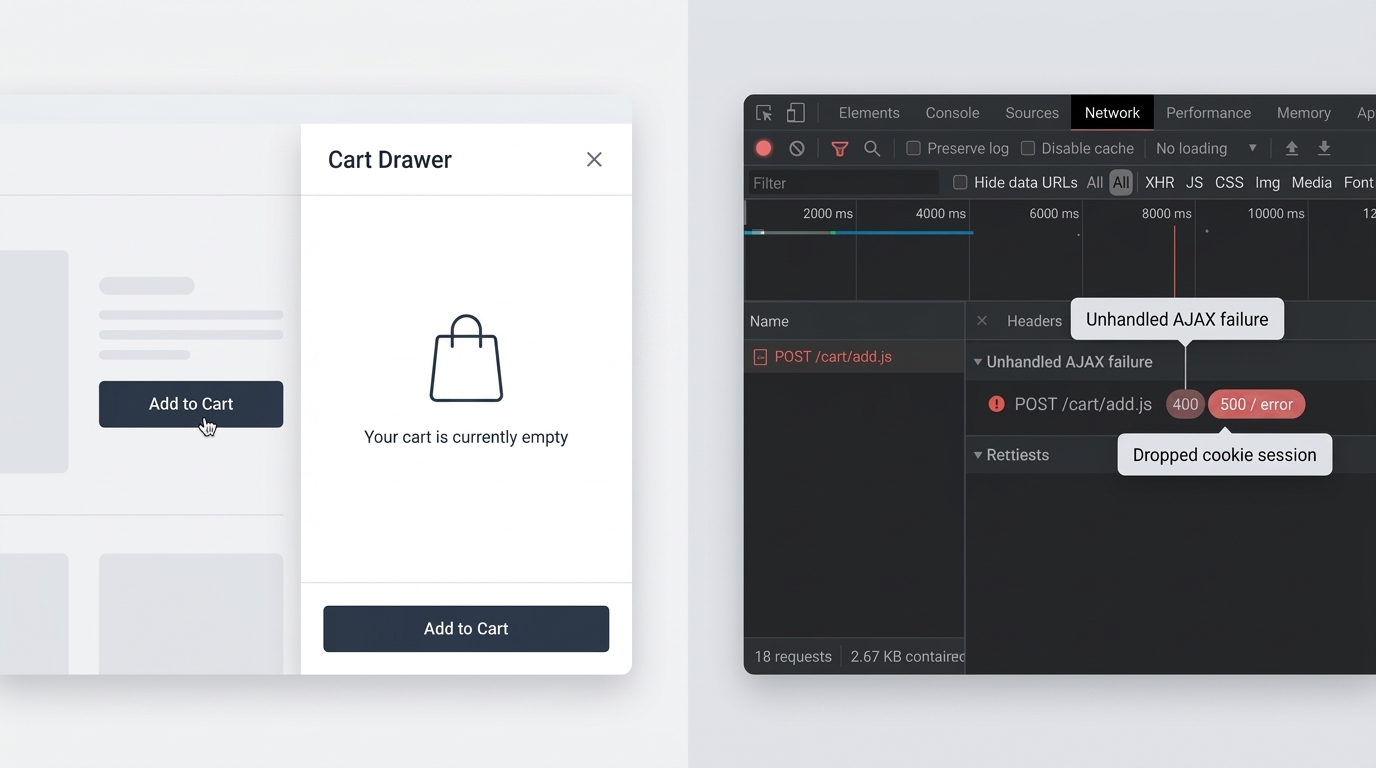
A customer browses your product catalog, selects their desired color and size, and clicks “Add to Cart”. The button shows a brief loading animation, the cart slide-out drawer glides onto the screen, and greets the buyer with an insulting message: “Your cart is currently empty.”
They return to the product page and click the button a second time. The drawer opens again: still empty. Confused and annoyed, the buyer concludes your store is buggy or untrustworthy, closes the tab, and completes their purchase on a competing website.
To your server monitoring logs, nothing broke. The product page loaded with status 200 OK, the cart drawer loaded with status 200 OK, and your uptime dashboard shows 100% green availability. Yet your store is silently discarding every single sale at the top of the purchase funnel.
Seeing “Your shopping cart is empty” or worried about silent cart drops?
Standard HTTP ping monitors only check server status codes and miss broken JavaScript hydration, invisible overlays, and disabled checkout buttons. UptimeClick runs real headless Chromium every 2 hours to verify that buttons like Add to Cart are physically actionable—alerting you immediately with error screenshots if a click fails.
Why Carts Discard Items Silently
Modern e-commerce platforms rely on a delicate coordination between three architectural layers: client-side AJAX requests, browser session cookies, and server-side state storage.
When a shopper clicks “Add to Cart”, the browser does not reload the entire page. Instead, it dispatches an asynchronous background payload (e.g., POST /cart/add.js in Shopify or an admin-ajax cart fragment in WooCommerce), waits for a JSON confirmation, and updates the DOM in place. If any single link in that sequence snaps, the cart fails to populate.
The 4 Hidden Causes Behind the Empty Cart Glitch
1. Aggressive CDN and Page Caching Serving Stale HTML
Caching services like Cloudflare, Fastly, or WordPress optimization plugins (such as WP Rocket or LiteSpeed) deliver blazing speed by storing pre-rendered static copies of your web pages at edge servers.
However, if your cache rules inadvertently capture the cart drawer or dynamic cart endpoints like /cart, every visitor will be served the same cached default state: an empty cart. Even though the backend database successfully recorded the product in the customer’s session, the frontend template serves an outdated snapshot from the cache.
The Fix: In your CDN and cache plugin settings, explicitly exclude /cart*, /checkout*, and session cookies (such as woocommerce_items_in_cart and Shopify cart tokens) from being cached. Add Cache-Control: no-store, no-cache, must-revalidate headers to dynamic cart endpoints.
2. Unhandled JavaScript Runtime Errors in AJAX Cart Handlers
Third-party apps (such as bundle builders, custom upsell drawers, and free shipping progress bars) intercept the default button click event to execute custom code before adding the item.
If an external app script throws an uncaught TypeError or fails to pass a mandatory variant property, the JavaScript execution chain terminates midway. The cart drawer opens via CSS transition, but the actual network request that tells the backend to store the item was never dispatched.
The Fix: Open Chrome DevTools (F12), switch to the Network tab, filter by “Fetch/XHR”, and click the button. Verify whether the POST /cart/add.js request is sent and whether it returns a 200 JSON object or a 400/500 error.
3. HTTP vs. HTTPS Domain Mismatches and Dropped Cookies
Modern web browsers enforce strict security standards around cookie persistence (such as SameSite=Lax and Secure flags).
If your storefront loads an asset over HTTP while the rest of the site runs on HTTPS, or if your WordPress Address and Site Address URLs do not match identically in your admin settings, the browser considers the navigation cross-origin. It immediately drops the session cookie, causing the cart to reset to zero upon every page transition.
The Fix: Ensure your entire site forces HTTPS with HSTS enabled. In WooCommerce, confirm that both WordPress Address (URL) and Site Address (URL) under Settings > General use https://.
4. Bloated Database Transients and PHP Session Timeouts
On self-hosted platforms like WooCommerce, cart sessions for guest visitors are stored temporarily in the database via the WordPress transients API.
If your database table (wp_options) accumulates hundreds of thousands of expired transient records without cleanup, database read queries time out. The server cannot retrieve the user’s cart hash in time and falls back to rendering an empty cart state.
The Fix: Navigate to WooCommerce > Status > Tools, click “Clear customer sessions” and “Clear expired transients”, and ensure your server PHP memory limit is configured to at least 256MB.
Why Traditional Uptime Checkers Never Detect This Bug
Standard uptime monitors operate at the server status level. They ping your homepage or product URL, verify that the server returns HTTP 200, and log 100% operational uptime.
An empty cart bug occurs entirely at the application and session layer:
- The product page returns HTTP 200 OK.
- The cart page returns HTTP 200 OK.
- The server is healthy, fast, and responsive.
Yet not a single customer can proceed to checkout because their items disappear into thin air.
The only reliable defense is automated synthetic browser monitoring. A headless Chromium engine navigates to the live product page, clicks the “Add to Cart” button, inspects the DOM to confirm that the cart count increments from 0 to 1, and verifies that the item remains in the cart upon opening checkout.
Diagnostic Reference: Empty Shopping Cart Root Causes
| Customer Symptom | Technical Cause | Resolution |
|---|---|---|
“Your shopping cart is empty” on /cart | CDN or page cache serving static HTML | Bypass cache for /cart* & cart cookies |
| Drawer opens with “Your cart is currently empty” | Uncaught JS error in AJAX /cart/add.js | Audit conflicting upsell/bundle scripts in Console |
| Cart empties when clicking Checkout | HTTP/HTTPS mismatch or SameSite cookie drop | Force strict HTTPS across storefront & checkout |
| Intermittent empty cart under high traffic | Expired database transients in wp_options | Clear WooCommerce customer sessions & transients |
Frequently Asked Questions
Why does it say “Your shopping cart is empty” after I just added an item?
This occurs when either the background AJAX request (POST /cart/add.js) was blocked by a JavaScript error before reaching the server, or your CDN/caching plugin served a cached zero-item HTML snapshot instead of reading your active session cookie.
Can Cloudflare or WP Rocket cause the “Your cart is currently empty” error?
Yes. If Cloudflare page rules or WordPress caching plugins cache dynamic URLs like /cart or strip session cookies (such as woocommerce_items_in_cart or Shopify cart tokens), every shopper is shown a cached empty basket.
How do I verify my cart is working for real visitors 24/7?
Standard ping monitors only check if the page returns HTTP 200 OK. By creating a free UptimeClick account (no credit card required), you can assign a real Chromium browser to check your button every 2 hours and email you a screenshot the moment it breaks.
Related Cart & Checkout Troubleshooting Guides
Never Let an Empty Cart Glitch Drain Your Sales
UptimeClick deploys real headless Chromium browsers to test your purchase buttons and cart drawers regularly. Receive instant screenshot alerts the moment a button or cart action breaks.