Mobile Buy Button Not Clickable on iPhone: Why Sticky Checkout Buttons Fail on iOS Safari
Over 75% of your retail traffic arrives on iPhones. Everything looks flawless on your desktop monitors, but mobile iOS conversion has quietly plunged to near zero. Shoppers are frantically tapping your sticky “Add to Cart” or “Complete Order” button, but nothing happens. Here is the deep technical anatomy of why iOS Safari breaks mobile checkout buttons—and how to diagnose and prevent it before your revenue evaporates.
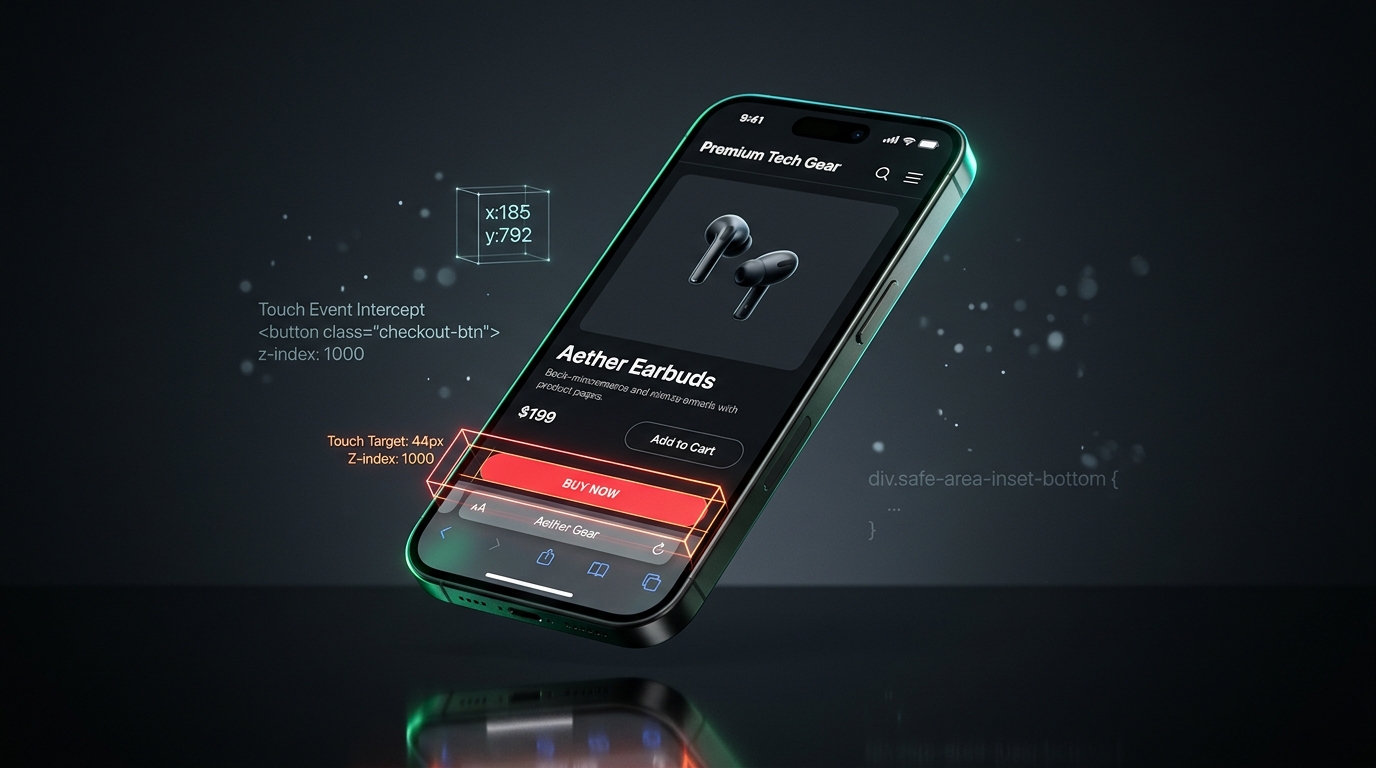
Is an invisible overlay blocking your mobile buy button right now?
A desktop test in Chrome DevTools cannot simulate how iOS Safari calculates physical hit testing, dynamic viewport bars (100dvh), and safe-area insets. When an invisible cookie banner or unoptimized CSS sticky bar breaks your mobile buy button, server uptime checks still show green while mobile revenue flatlines. UptimeClick simulates real mobile touch interactions every 2 hours.
The Anatomy of a Silent Mobile Checkout Murder
Imagine this scenario: Your marketing team launches a high-budget paid TikTok and Meta ad campaign. Thousands of mobile visitors flood your product detail pages and checkout funnels. Your real-time analytics dashboard shows surging concurrent sessions, high scroll depth, and healthy time-on-page.
Yet hours pass, and virtually zero orders come through from iOS devices.
Your desktop conversion rate is sitting comfortably at 3.4%. Your Android conversion rate is 3.1%. But on iOS Safari—which typically accounts for 65% to 80% of all Direct-to-Consumer (DTC) e-commerce revenue—conversion has collapsed to 0.12%.
You open the product page on your desktop browser, switch to mobile responsive mode in Chrome DevTools, click the button, and it works flawlessly. You run a synthetic uptime check through Pingdom or Datadog, and your servers report a glowing HTTP 200 OK with a snappy 180ms response time.
What is happening? The button is physically visible. The text is sharp. But to an iPhone user holding the device in their hand, tapping the button does absolutely nothing. No spinner appears, no cart drawer slides out, and no checkout request is dispatched. The customer taps three times, assumes your website is broken or fraudulent, and bounces forever to Amazon.
“Desktop DevTools mobile emulation is a developer convenience, not a true test of mobile reality. WebKit on iOS handles hit-testing, safe areas, and dynamic viewport bars in ways Chromium desktop engines simply cannot replicate.”
The 5 Culprits Behind Unclickable Mobile Buttons on iOS Safari
Modern mobile e-commerce relies heavily on sticky action bars—fixed footer containers that dock the “Add to Cart” or “Proceed to Checkout” button to the bottom of the viewport so users can buy instantly without scrolling back up. However, the intersection of CSS positioning, third-party JavaScript scripts, and WebKit touch architecture creates five critical points of failure:
1. The Dynamic Viewport Height & Safe Area Inset Trap
In iOS 15 and later, Apple introduced the dynamic floating address barin Mobile Safari. As users scroll down a page, Safari’s bottom navigation bar shrinks or becomes translucent; when they scroll up or pause, the navigation bar expands back to full height.
Many Shopify themes and custom headless frontends position their sticky footer using basic CSS:
/* ❌ BROKEN: Collides with Safari bottom bar & home indicator */
.sticky-buy-bar {
  position: fixed;
  bottom: 0;
  left: 0;
  width: 100%;
  height: 60px;
  z-index: 999;
}
On modern bezel-less iPhones (iPhone 11 through iPhone 16 Pro Max), the physical display features a rounded bottom notch and a swipeable white horizontal line known as the Home Indicator. When you anchor a container with bottom: 0without accounting for Apple’s safe area insets, the primary tap target of your buy button sits directly behind the Home Indicator or under the translucent Safari URL bar.
When the user taps their thumb on the button, iOS WebKit awards the touch event to the system navigation gesture or the browser address bar rather than your button. The button never registers the tap.
/* ✅ FIXED: Respects Dynamic Viewport & iOS Safe Area Insets */
.sticky-buy-bar {
  position: fixed;
  bottom: 0;
  left: 0;
  width: 100%;
  /* Fallback for older browsers + Dynamic Viewport support */
  padding-bottom: max(16px, env(safe-area-inset-bottom));
  /* Prevents Safari scrollbar shifting */
  box-sizing: border-box;
  z-index: 1000;
  /* Ensures taps register immediately */
  touch-action: manipulation;
}
2. Invisible Overlay Hijacking (Popups, Chatbots & Review Widgets)
By far the most common cause of sudden mobile button failure is invisible DOM obstruction. Modern e-commerce stores load dozens of third-party Shopify apps and marketing scripts:
- SMS / Email Lead Capture Popups (Klaviyo, Attentive, Justuno)
- Customer Support Chat Widgets (Gorgias, Zendesk, Tidio)
- Cookie & GDPR Consent Banners (OneTrust, Cookiebot)
- Sticky Social Proof / Review Badges (Loox, Judge.me, Yotpo)
Many of these app widgets construct an invisible container layer to detect outside clicks. Even when the popup is dismissed or closed, poorly written scripts frequently leave an invisible wrapper in the DOM:
<!-- An invisible container covering the screen with pointer-events enabled -->
<div id="third-party-popup-backdrop"
     style="position: fixed; top: 0; left: 0; width: 100vw; height: 100vh;
            opacity: 0; z-index: 99999; pointer-events: auto;">
</div>
Because this element has opacity: 0, it is 100% invisible to human eyes and screenshot monitors. But because it has pointer-events: auto and a higher z-indexthan your sticky buy bar, WebKit’s hit-testing algorithm intercepts the tap on the invisible backdrop. Your buy button is effectively trapped behind a pane of bulletproof glass.
3. CSS pointer-events: none Inheritance Mismatch
To allow users to read product descriptions and scroll through customer reviews even when a full-width sticky footer is docked to the bottom of the screen, frontend developers frequently use this clever CSS technique:
.sticky-footer-wrapper {
  position: fixed;
  bottom: 0;
  left: 0;
  width: 100%;
  pointer-events: none; /* Let user scroll through empty wrapper space */
}

.sticky-footer-wrapper .buy-button {
  pointer-events: auto; /* Re-enable click on the actual button */
}
This architecture works brilliantly—until a frontend theme update, a CSS minifier rule, or a conflicting Tailwind utility class (such as a utility reset or an animation library like Framer Motion) inadvertently overrides pointer-events: auto on the child button.
The moment pointer-events: auto is lost, the button visually renders in full glory, but the browser treats it as a non-interactive ghost. Any tap or touch gesture passes straight through to whatever element happens to be underneath it on the page.
4. The WebKit 300ms Click Delay & Touch Gesture Dropping
Historically, Mobile Safari introduced a 300ms delay between a physical screen tap and the firing of the synthesized click event to determine whether the user was performing a single tap or a double-tap-to-zoom gesture.
While modern browsers disable this delay if you have <meta name="viewport" content="width=device-width, initial-scale=1">, many legacy Shopify themes or custom themes still include touch-detection libraries (like FastClick or hammer.js) or custom event listeners that attach to touchstart / touchend.
When a user flicks their thumb rapidly to scroll down a product page, iOS WebKit initiates a momentum scroll gesture. If your button’s JavaScript logic fails to handle touchcancel or has conflicting touch-action declarations, WebKit classifies the tap as the end of a scroll gesture rather than a discrete tap event. The button remains dead.
5. Hydration Lag & Island Desynchronization in Modern Storefronts
If your e-commerce store is built on a modern headless framework (Shopify Hydrogen, Next.js, Remix, or Astro) or a heavily optimized Liquid theme with asynchronous script loading, you may be experiencing Hydration Lag.
In server-side rendered (SSR) architectures, the server pre-renders the complete HTML of your product page, including the sticky buy button. The customer’s iPhone downloads and displays the visual button in less than 800ms (achieving a fantastic Google Lighthouse score).
However, on a congested mobile 4G or 5G connection, the JavaScript bundle required to hydrate the button (binding the onClick handler to your cart store or Shopify Ajax Cart API) may take an additional 3 to 5 seconds to download, parse, and execute.
During this “uncanny valley” window, the button looks 100% active and clickable, but physically tapping it produces zero result. The customer concludes your checkout is broken and leaves before the JavaScript event listeners ever attach.
Desktop vs. Real iOS Safari: Why Testing Fails
The table below highlights why traditional QA workflows fail to detect mobile checkout button unclickability:
| Testing Vector | Desktop Chrome DevTools | Standard Uptime Ping | Real Mobile WebKit / UptimeClick |
|---|---|---|---|
| Dynamic Viewport (dvh) | ❌ Static simulated height | ❌ Not evaluated (HTTP only) | ✅ Full dynamic address bar physics |
| Safe Area Inset Tap Occlusion | ❌ No Home Indicator gesture layer | ❌ Not evaluated | ✅ Evaluates physical interactive boundaries |
| Invisible Overlay Hit-Testing | ⚠️ Partial (relies on mouse hover) | ❌ Zero DOM analysis | ✅ True elementFromPoint() touch test |
| Hydration & Actionability | ⚠️ High-speed desktop CPU masks lag | ❌ Blind to client JavaScript | ✅ Verifies physical event execution |
| Real-Time Failure Alerts | ❌ Manual check only | ⚠️ False positive (200 OK) | ✅ Instant alert with visual screenshot |
How to Diagnose an Unclickable Mobile Button in 5 Minutes
If you suspect your mobile buy button is unresponsive on iPhone, follow this rapid triage protocol:
Step 1: Connect Your iPhone to Mac Safari Web Inspector
Plug your iPhone into a Mac via USB. On your iPhone, enable Settings > Safari > Advanced > Web Inspector. Open Safari on your Mac, navigate to the Develop menu, select your iPhone, and click your store URL. This opens the full developer console directly attached to the physical WebKit engine.
Step 2: Run the elementFromPoint Hit-Test
To find out what element is actually receiving touches when a user taps your sticky buy button, open the Console tab and run:
// Get the exact center coordinate of your sticky buy button
const btn = document.querySelector('.sticky-buy-button, [name="add"]');
const rect = btn.getBoundingClientRect();
const x = rect.left + rect.width / 2;
const y = rect.top + rect.height / 2;

// Ask WebKit what element is physically hit at those coordinates
const hitElement = document.elementFromPoint(x, y);

console.log("Expected Button:", btn);
console.log("Actually Hit Element:", hitElement);

if (btn !== hitElement && !btn.contains(hitElement)) {
  console.error("🚨 OVERLAY DETECTED! Your button is blocked by:", hitElement);
}
If the console prints a container belonging to a review app, a live chat widget, or a transparent modal backdrop, you have immediately isolated the offending script.
Step 3: Inspect pointer-events and touch-action
Check the computed CSS properties of the button and all its parent containers:
let el = btn;
while (el) {
  const style = window.getComputedStyle(el);
  if (style.pointerEvents === 'none') {
    console.warn("⚠️ Pointer events disabled on element:", el);
  }
  if (style.touchAction === 'none') {
    console.warn("⚠️ Touch action disabled on element:", el);
  }
  el = el.parentElement;
}
How UptimeClick Protects Your Mobile Revenue 24/7
Manual USB debugging is essential when diagnosing an active crisis. But how do you ensure that an unannounced app update at 2:00 AM on a Friday doesn’t silently break your mobile buy button right before your biggest weekend sale?
This is precisely why we engineered UptimeClick.
Unlike traditional ping services that only check if your web server returns 200 OK, UptimeClick launches real, headless Chromium browsers running with authentic mobile device profiles (iPhone 15 Pro, Pixel 8) with touch emulation enabled:
UptimeClick calculates exact touch coordinates and verifies that tapping the button actually reaches the button element, rather than being swallowed by an invisible backdrop.
It verifies that the button is not disabled, not obscured by a dynamic sticky header or footer, and that firing the touch event successfully triggers the cart drawer or navigates to checkout.
If an app update, CSS overlay, or hydration glitch prevents the button from being tapped, UptimeClick dispatches an urgent email alert with a high-resolution screenshot showing your engineers the exact visual state of your mobile viewport before your customers bounce.
Stop Losing 75% of Your Mobile Shoppers to Dead Buttons
UptimeClick simulates real mobile touch interactions on your Add to Cart and checkout buttons every 2 hours. Catch broken overlays and viewport glitches with instant screenshot alerts.