How to Fix “This Site Can’t Be Reached” (Step-by-Step Guide)

UptimeClick Operations
7 min read
The Infamous Chrome Gray Screen
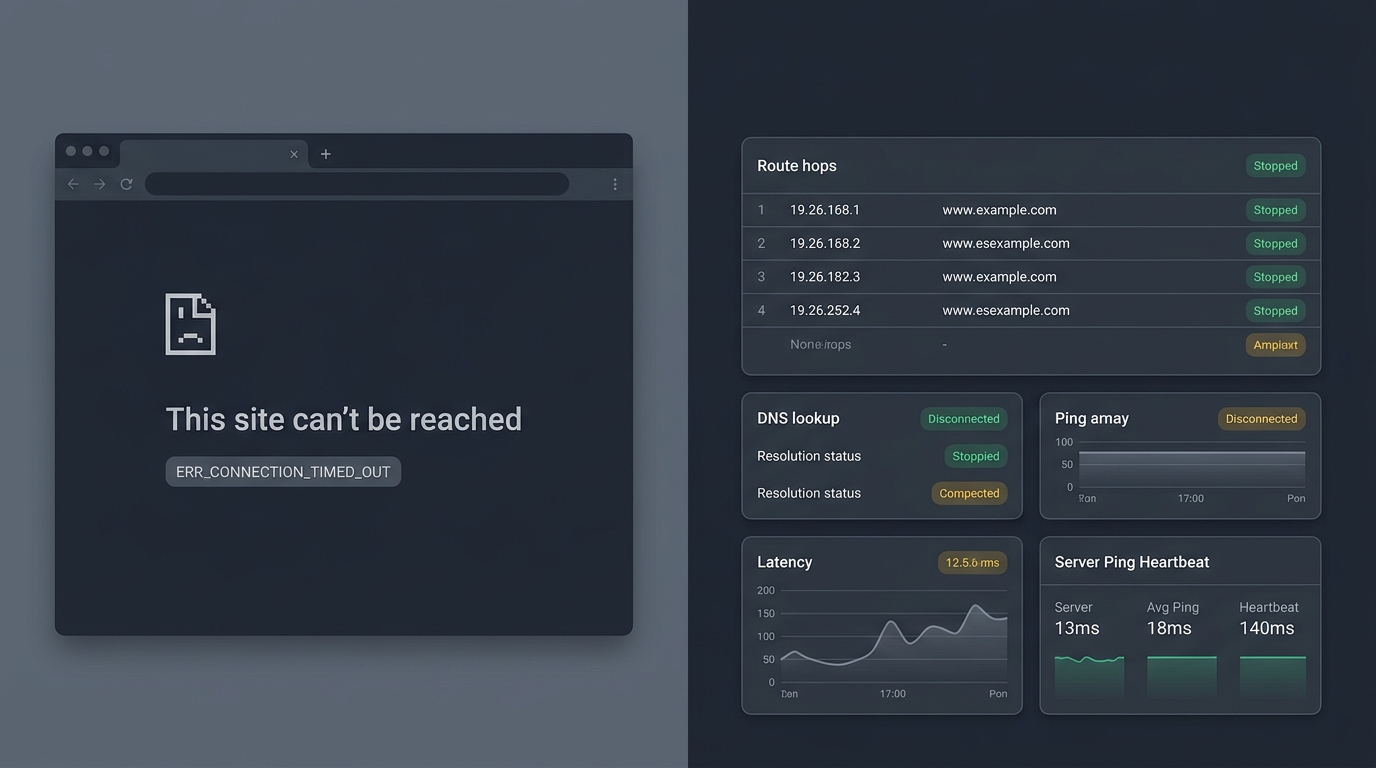
You enter a web address or click an external link, and instead of the webpage loading, your browser screen turns stark gray. A sad folded-page icon appears alongside a familiar, frustrating headline: “This site can’t be reached.”
Whether you are a visitor trying to purchase something or a website owner discovering that your users are locked out, this error is often misunderstood. It does not mean the website was destroyed or that your computer is permanently infected. It simply means the communication handshake between your browser and the remote server broke down.
To fix it quickly, you need to look past the generic headline and identify the specific sub-code displayed at the bottom of the screen.
Want automated verification that your 'Place Order' button actually works?
Standard HTTP ping monitors only check server status codes and miss broken JavaScript hydration, invisible overlays, and disabled checkout buttons. UptimeClick runs real headless Chromium every 2 hours to verify that buttons like Place Order or Complete Purchase are physically actionable—alerting you immediately with error screenshots if a click fails.
Decoding the 4 Most Common Error Codes
Google Chrome uses “This site can’t be reached” as a catch-all container for very different networking bottlenecks:
- ERR_CONNECTION_TIMED_OUT:The browser reached out to the server’s IP address, but no acknowledgment packet was returned within the 30-second timeout window. Typically caused by an overloaded origin host, dropped network packets, or an aggressive firewall blocking your subnet.
- DNS_PROBE_FINISHED_NXDOMAIN: NXDOMAIN stands for Non-Existent Domain. The DNS lookup failed completely. Either the domain registration expired, DNS records are still propagating after a migration, or your local DNS cache contains corrupted records.
- ERR_CONNECTION_REFUSED: The server was reached, but it actively refused the connection on port 80 (HTTP) or 443 (HTTPS). This occurs when the web server software (Nginx, Apache, or LiteSpeed) crashed or stopped listening for incoming traffic.
- ERR_SSL_PROTOCOL_ERROR: The client and server were unable to agree on a secure encryption handshake. This happens when an SSL certificate expires, cipher suites do not match, or intermediate certificate authorities are missing.
Part 1: How to Fix It as a Visitor (Client Side)
If you are attempting to visit an external website, work through this sequential checklist before assuming the entire service is permanently dead:
1. Test in an Incognito Window
Browser extensions—particularly ad blockers, VPN extensions, and cookie blockers—frequently intercept outgoing requests and crash quietly. Open a private window by pressing Ctrl + Shift + N on Windows or Cmd + Shift + N on Mac. If the site loads without incident in private browsing, an extension is responsible. Disable extensions one by one to isolate the culprit.
2. Flush Your Local DNS Cache
Your operating system stores DNS records locally so it does not have to query the internet every time you visit a site. If a domain changed hosting providers or your local Wi-Fi router returned corrupted records, flushing the cache forces an immediate live lookup.
On Windows, open the Command Prompt as Administrator and enter:
ipconfig /flushdnsOn macOS, open Terminal and execute:
sudo dscacheutil -flushcache; sudo killall -HUP mDNSResponder3. Switch to Public DNS Resolvers
Default DNS servers provided by local Internet Service Providers (ISPs) often suffer from slow cache updates, regional routing bottlenecks, or temporary outages. Switching your network adapter to industry-standard public resolvers solves NXDOMAIN errors in seconds:
- Cloudflare DNS: Primary
1.1.1.1| Secondary1.0.0.1 - Google Public DNS: Primary
8.8.8.8| Secondary8.8.4.4
Part 2: Why Your Website Throws This Error to Real Visitors
If prospective customers or team members report seeing “This site can’t be reached” on your store or application, never test solely from your personal office laptop. You may be viewing an edge-cached version or sitting inside a whitelisted network. The true root causes on the host side include:
1. Crashed Origin Web Server Daemons
A cloud virtual machine can remain 100% online (responding to ping requests), while the actual web server process (Nginx, Apache, or Node.js) has been terminated by the operating system’s Out-Of-Memory (OOM) killer. When the web service dies, visitors receive ERR_CONNECTION_REFUSED immediately.
2. Web Application Firewall (WAF) False Positives
Security services like Cloudflare, AWS WAF, or WordPress security plugins monitor traffic volume. If legitimate customers click rapidly through a catalog or submit checkout forms quickly, the firewall can flag them as bots and drop their packets silently, presenting ERR_CONNECTION_TIMED_OUT to those specific buyers.
3. Broken DNS TTL and Missing Records
During server migrations, forgetting to update the root @ A record or pointing the www CNAME to a discontinued server IP causes regional outages. Because DNS records propagate worldwide over several hours, users in Europe may connect fine while users in North America see NXDOMAIN errors.
Why Basic Ping Checkers Fail to Alert You
Standard uptime tools like UptimeRobot only ping the server IP with a basic ICMP echo or HTTP HEAD request. As long as the server responds with a 200 header, the checker marks your site as fully operational.
However, traditional pings do not test whether real desktop browsers can complete the full TLS handshake, execute JavaScript bundles, and maintain interactive shopping carts. If an unhandled third-party script freezes the buy button or an SSL renewal fails to chain properly, simple ping monitors stay green while your visitors walk away.
Automated synthetic browser testing launches real Chromium instances to execute customer actions—such as clicking Add to Cart, loading the checkout form, and validating button responsiveness—ensuring your store is truly functional.
Frequently Asked Questions
Does this error mean my website was hacked?
Almost certainly not. Over 95% of connection reachability errors result from routine infrastructure issues: local DNS caching, server resource exhaustion, expired SSL certificates, or aggressive firewall rules.
Why does my website load on my phone but fail on my laptop?
Your phone uses your cellular provider’s DNS network, while your laptop uses your local Wi-Fi router. If your local router or computer DNS cache holds outdated IP addresses, the laptop will fail while the phone connects without issue.
How fast does DNS propagate after updating records?
Leading providers like Cloudflare propagate changes within 5 to 15 minutes when TTL is set to 300 seconds. However, certain local ISP resolvers around the world can take up to 24 hours to update their cache.
Never Let Hidden Connection Failures Cost You Revenue
UptimeClick deploys real headless Chromium browsers to test your purchase buttons and website responsiveness 24/7. Receive instant screenshot alerts the moment a customer flow fails.